
ScreenBlur- Blur Sensitive Content on Any Webpage Instantly
ScreenBlur is a Chrome extension. It helps blur sensitive content on any webpage in real time. This is super useful for screen sharing. It can hide recording tutorials or demos, take screenshots, and instantly hide confidential information without interrupting your workflow.
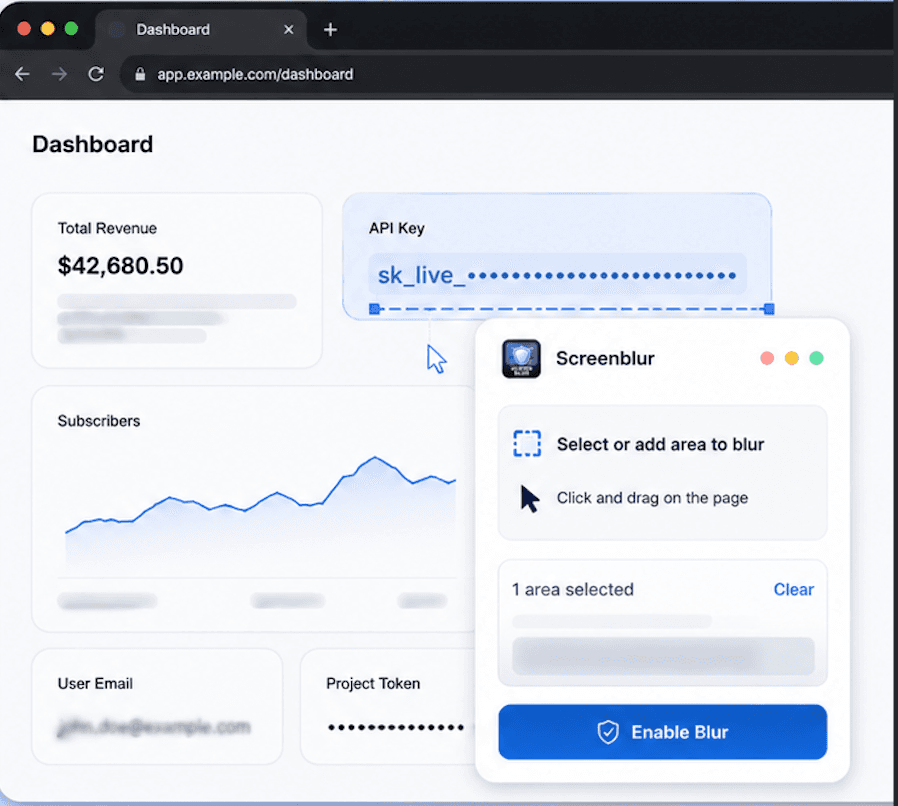
Blur Sensitive Info in Three Simple Steps
ScreenBlur protects confidential information in real time by blurring sensitive content on any webpage or screen during screen sharing or recordings.
Subscribe and download the ScreenBlur desktop app for Windows, macOS, or Linux. Quickly set up your workspace and get ready to blur sensitive data across your screen.
Activate blur mode and choose exactly what you want to hide. Blur text, images, dashboards, or any sensitive information directly on your screen or webpage.
Fine-tune blur intensity using simple controls, then start screen sharing, recording, or presenting. Your private data stays hidden while everything else remains clear and professional.
Prepare Your Screen for Safe Sharing Quickly and Easily
ScreenBlur helps you make any webpage or app private in seconds. It blurs stuff, and you can change it as needed. Then you can record your screen without any hassle. ScreenBlur is really useful for this.
What Happens on Your Screen
- Open What You Want to Share
Start with the webpage, dashboard, or app you plan to present, record, or share.
- Activate ScreenBlur
Launch the ScreenBlur desktop tool or browser workflow to enable blur mode instantly.
- Blur Sensitive Content
Select and blur text, images, or confidential data directly on your screen. Highlight, remove, or reset regions anytime with simple controls.
- Adjust & Go Live
Fine-tune blur intensity, then start your screen sharing, meeting, or recording. Your sensitive information stays hidden in real time.
This mirrors how modern SaaS homepages walk users from input to output: here, the “output” is a protected share surface, not a document.
Browser-style canvas + live blur overlay—your audience never sees the raw region.
Everything You Need to Keep Your Screen Private
Built for speed, simplicity, and real-time protection so you can blur sensitive content without slowing down.
1. One-Click Blur Mode
Start blurring sensitive content instantly. No need for setup and no delays.
2. Precise Targeting
Blur only what matters, i.e., emails, names, IDs, financial data, API keys, or dashboards.
3. Session-Friendly
Perfect for screen sharing, demos, and recordings where you need consistent privacy.
4. Clean, White UI
A simple, distraction-free interface that keeps everything easy to see and use.
5. Lightweight & Fast
Runs smoothly without slowing down your system. Get instant when you need it.
6. Confidentiality-First Design
Built to reduce the risk of exposing sensitive or private information.
7. Reset in One Click
Clear all blurred areas instantly and start fresh in seconds.
8. Highlight + Blur
Focus attention on important areas while keeping sensitive content hidden.
9. Always-Accessible Toolbar
A floating toolbar stays within reach so you can act quickly during live sessions.
10. Built for Teams
Ideal for sales demos, client calls, onboarding, and internal reviews.
11. Made for Creators
Record tutorials, videos, and livestreams without revealing personal information.
12. Developer-Friendly
Hide API keys, tokens, and internal tools during coding, demos, or presentations.
Desktop App and Chrome Extension—Built for Privacy
Use ScreenBlur the way you prefer.
Customer summary · blurred fields simulate sensitive values on any live webpage.
Chrome Extension
Blur Overlays Live on Every Webpage—Not in a Separate Editor
The desktop app lets you blur sensitive content across your entire screen, while the Chrome extension helps you blur content directly on webpages. Both are designed to keep your data private during screen sharing and recordings.
- Regions follow the DOM-like layout: Target specific elements like cards, panels, rows, or create custom rectangles that align with the page layout as you move through it.
- Toolbar That Stays with You: A mini toolbar stays anchored to your content. Adjust blur strength with +/−, or use Clear to remove overlays when switching context. Available on Chrome Web Store.
- Built for Onboarding & Support: Stay in a single tab while guiding users. No need to crop screens or pause meetings to fix your frame.
Desktop App
Privacy Blur Across Your Entire Desktop Including Native Apps
When screen sharing or recording your full desktop, browser-only blur isn’t enough. ScreenBlur’s desktop app brings a floating Privacy blur bar that works across Windows, macOS (Apple silicon), and Linux.
- Works Beyond the Browser: Blur sensitive content across your entire desktop, including native apps, webinars, and OBS recordings.
- Lock, Blur, and Highlight: Lock sensitive regions, then switch between blur and highlight modes to guide walkthroughs or support compliance reviews.
- Stay in Fullscreen Control: Make quick adjustments without leaving full-screen—use Del to remove a mask or Clear to reset and rehearse your demo smoothly.
- Consistent End-of-Session Control: Use the power toggle to quickly turn off blur when wrapping up meetings or recordings on Meet, Zoom, Teams, or Loom.
Why Teams Choose ScreenBlur Over Editing Tools
Teams prefer ScreenBlur because it works in real time. Instead of editing screenshots or recordings later, you can blur sensitive content instantly while you work, share, or present.
- —It is really helpful as it protects parts of your screen before you start streaming. No need to worry about scrambling around mid-call when something unexpected shows up on your screen.
- —The Desktop Privacy feature of ScreenBlur works on your screen, and the Chrome extension helps you control what happens on each webpage.
- —ScreenBlur has some useful controls, like Lock, Highlight and blur strength, that you can adjust. You can also delete things. Clear them, which is great if you have to share your screen a lot.
- —It works with tools like Zoom, Teams, Meet, OBS and Loom. This means you can protect the things you want to keep private.
- ✕Some people try to use video editors to blur things after they have recorded them. This is not a good idea because your stuff might still be visible during live calls.
- ✕Some tools can blur images. These only work for screenshots and not for live stuff.
- ✕Some people try to crop their screens. This does not work if their windows are not in the right place.
- ✕Some screen recorders are not very good because they do not know which things on your screen should be kept private.
A Practical Blur Tool for Everyday Work
ScreenBlur isn’t limited to one situation; it helps you blur sensitive content anywhere it appears on a webpage or screen.
Screen Sharing
On a call, it is an idea to blur things like customer records, inboxes, billing pages and admin panels. This way, sensitive information stays hidden from view.
Screen Recording
While recording something on screen, you should keep things private. For example you can obscure tabs and fields that have sensitive information. This is especially important when you are making walkthroughs or demos of a product.
Screenshots
Sometimes you need to take a picture of your screen to share with someone. When you do this, you should hide things like names, email addresses and important numbers. Perform instantly, which is helpful when you are sharing updates, reporting problems or making documents.
Compliance-Friendly Workflows
Not to share information accidentally about people when showing demos or reviewing things, inside the company. This is important because we need to follow rules and we do not want to take any risks. Screen Sharing and other tools can help us with this.
Where Teams Use Blur First
Same Tool, Different Workflows
ScreenBlur fits into different workflows. Pick the scenario closest to yours and get your screen ready before the call begins.
Works with Your Meeting and Recording Tools
ScreenBlur works directly on your screen, so it fits naturally with the tools you already use for screen sharing and recording.
Meetings
Works with Google Meet, Zoom, Microsoft Teams, and other video conferencing tools.
Recording
Compatible with Loom, OBS, screen recorders, and walkthrough tools.
Browser Support
Supports Chrome and Chromium-based browsers, including Edge, Brave, and Opera.
People who share their screens every day trust ScreenBlur.
We have teams, creators and professionals who use ScreenBlur to keep information safe when they share their screens or make recordings.
“Screen sharing used to stress me out. Now I blur sensitive parts instantly and present with confidence.”
“I no longer worry about exposing emails or data during demos—everything stays under control.”
“Super useful for recordings. I can blur private info before I start, instead of fixing it later.”
“Clean, simple, and fast. It fits perfectly into my workflow when I’m presenting dashboards.”
Quick Answers to Common Questions
Learn how ScreenBlur works and how it helps you blur sensitive content during screen sharing and recordings.
Q. What is ScreenBlur and how does it work?
ScreenBlur is a tool. It helps you blur stuff on your screen instantly. You can pick areas, like text, images or data. Then you can hide them instantly. This works before you share your screen record or take a screenshot. ScreenBlur helps you protect content.
Q. Do I have to change my videos or screenshots after I use ScreenBlur?
No, ScreenBlur works away so your private details are already hidden before you record, share or take a picture.
Q. Can I make some parts of a webpage or screen unclear?
Yes, You can pick what to make unclear, like emails, names or any area you choose, without changing the rest of your screen.
Q. Does ScreenBlur work when I share my screen live?
Yes, ScreenBlur is made for use. It keeps information hidden when you are in meetings, demos or presentations.
Q. Which platforms and tools does ScreenBlur work with?
ScreenBlur works with tools like Zoom, Google Meet, Microsoft Teams, Loom, OBS and other platforms for recording or sharing screens.
Q. Does ScreenBlur work outside of the browser?
Yes, the desktop app lets you make content unclear on your screen, including apps that are not on the web.
Q. What is the difference between the desktop app and the Chrome extension?
The desktop app works on your screen and all apps. The Chrome extension focuses on making content on webpages.
Q. Can I change how unclear the blur is?
Yes, you can make the blur stronger or weaker using controls, depending on how much you want to hide.
Q. Can I quickly reset areas I made unclear?
Yes, you can. You can remove areas you made unclear or clear all overlays right away and start fresh.
Q. Will ScreenBlur make my system or browser slow?
No, it will not. ScreenBlur is made to be fast and not use power so it runs smoothly even during live sessions.
Available for All Major Platforms